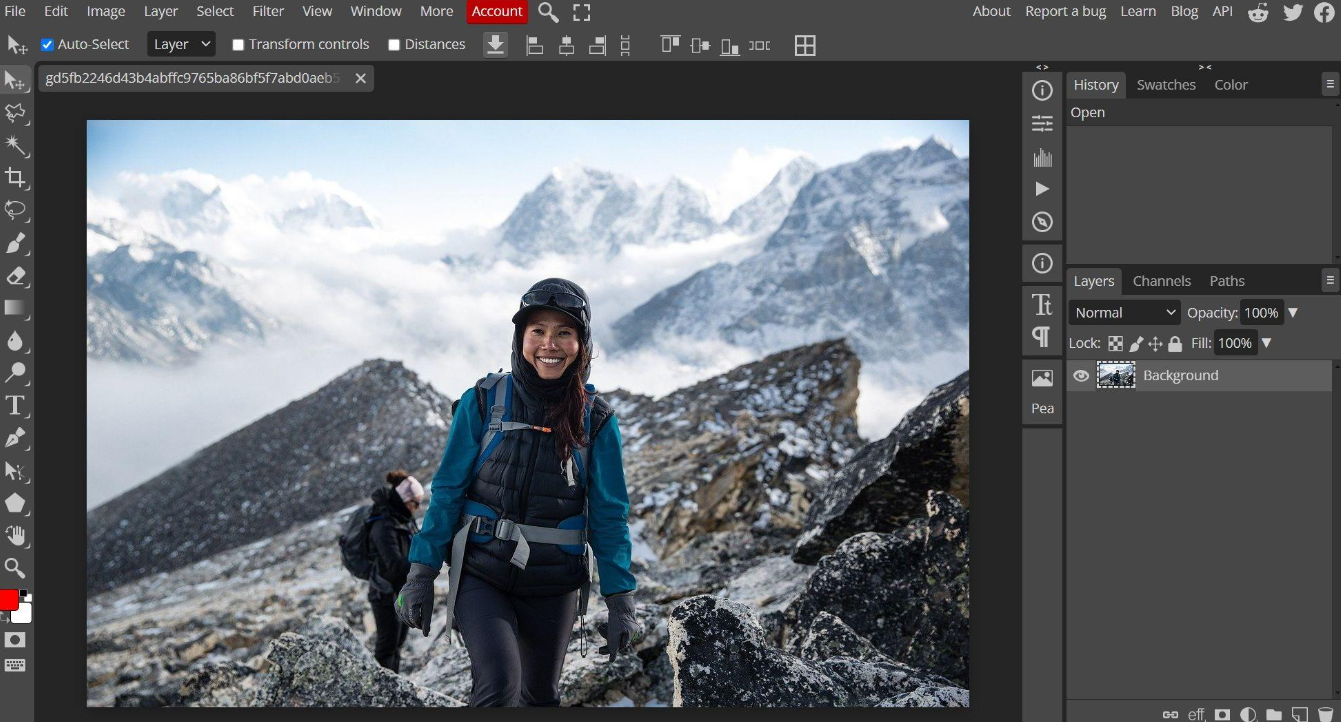
Finding a useful photo editor can be difficult when you want more than basic filters but do not want to install expensive desktop software. For students, bloggers, freelancers, and occasional designers, an online image editor can provide a practical alternative.
Photopea is a browser-based image editor that supports layered documents, image adjustments, masks, and a wide range of file formats. One of its most notable features is its ability to open and save Photoshop PSD files.
But is Photopea suitable for everyday photo editing? Can it handle design projects without a desktop application, and what limitations should you consider before using it?
In this review, we examine Photopea’s main features, file compatibility, advantages, limitations, and alternatives to help you decide whether it fits your workflow.
1. What Is Photopea?
Photopea is an online image editing application created by Czech developer Ivan Kutskir. It runs in a web browser and provides tools for editing photographs, creating graphics, and working with layered design documents.
Unlike a basic photo filter website, Photopea offers a more advanced editing environment. Users can work with layers, masks, selections, text, shapes, and adjustment tools within a single interface.
One of its most useful features is PSD compatibility. If someone sends you a Photoshop project and you only need to make a few changes, Photopea can provide a way to open and edit that document without installing Photoshop.
The editor also supports numerous other formats, including JPG, PNG, WebP, SVG, PDF, and several camera RAW formats.
Photopea is accessible through its official website:
2. Key Features of Photopea
Layer-Based Image Editing
Layers allow users to organize different elements of an image separately.
For example, a promotional graphic might contain a background photograph, a product image, a headline, and several decorative elements. Keeping these components on separate layers makes it easier to adjust the design later.
Photopea supports layers, masks, layer styles, and adjustment layers. These features make it suitable for projects that require more control than a basic image editor provides.
However, users who have never worked with layers may need some time to understand the interface.
PSD File Compatibility
PSD support is one of Photopea’s most important advantages.
Users can open and save Photoshop documents, making the application useful for reviewing existing designs or making changes to layered projects.
Consider a common situation: a freelancer receives a PSD banner from a client and needs to update its text, adjust an image, or change a background color.
Photopea may allow the freelancer to complete these changes without purchasing a separate desktop editing application.
Compatibility is not necessarily perfect for every document, however. Complex projects that depend on specialized fonts, advanced effects, linked assets, or application-specific features should be checked carefully after opening.
Selection and Masking Tools
Selection tools help isolate specific areas of an image, while masks control which parts of a layer remain visible.
These functions are useful when removing a background, adjusting a particular object, or combining several images into one composition.
For example, someone preparing a product photograph may want to separate the product from its original background before placing it on a cleaner backdrop.
The quality of the result depends on the original image and the complexity of its edges.
Color Adjustments and Filters
Photopea includes image adjustment tools such as brightness, contrast, exposure, levels, and curves.
These functions help users correct photographs that appear too dark, too bright, or lacking in contrast.
Additional filters provide options for sharpening, blurring, and applying visual effects.
For bloggers and website owners, these tools can be useful when preparing photographs, article illustrations, and promotional graphics.
Support for Multiple File Formats
Photopea supports a broad range of image and design formats.
Common examples include:
- JPG and PNG for everyday photographs and graphics.
- WebP for web images.
- SVG for vector graphics.
- PDF for supported document-based graphics.
- PSD for layered Photoshop projects.
- Selected RAW formats for camera images.
This flexibility can reduce the need to switch between different applications when working with several types of visual content.
However, opening a file does not guarantee that every feature will be preserved exactly. Before delivering an edited project, check the document layout, fonts, effects, and exported image.
Browser-Based Editing and File Privacy
Photopea works directly in a web browser, so users do not need to install a conventional desktop editing package.
The developer describes the standard editing workflow as local processing, with files remaining on the user’s device rather than being routinely uploaded to a remote server.
This can be useful for people who prefer working locally.
Nevertheless, users should distinguish normal file editing from other online features. Before using cloud integrations, external services, or sharing functions, review how those specific features handle data.
For confidential business documents, it is sensible to confirm the applicable privacy arrangements before starting work.
3. Advantages of Photopea
Photopea offers several benefits for users who need flexible image editing without a traditional desktop installation.
Accessible editing environment: Users can open the editor in a compatible browser without installing a conventional graphics application.
Useful PSD support: The ability to open and save PSD files is valuable for people who occasionally work with Photoshop projects.
Layer-based workflow: Layers, masks, and adjustment tools provide more control than many basic online photo editors.
Broad format compatibility: Support for numerous image and design formats makes it useful for different types of projects.
No-cost entry point: Users can access the editor without purchasing a conventional desktop software license. Check the current website for advertising, premium options, and any usage conditions.
Flexible use cases: Photopea can handle a variety of tasks, from adjusting photographs to preparing banners and modifying existing graphics.
These advantages make it worth considering for students, freelancers, bloggers, and small businesses.
4. Limitations to Consider Before Using Photopea
Although Photopea provides many editing functions, it is not the ideal solution for every workflow.
Performance Depends on Your Device
Because Photopea operates in a browser and uses local computing resources, performance can vary with the device, available memory, browser, and project complexity.
Small images and straightforward designs may be manageable on modest hardware. Large documents with numerous layers can place greater demands on system resources.
The Interface May Feel Complicated to Beginners
Photopea provides more advanced tools than a basic photo filter application.
This flexibility is useful, but it also means beginners may need time to learn how layers, masks, selections, and adjustment settings work together.
People who only want to crop a photograph or apply a simple filter may prefer a more streamlined application.
Professional Photography Workflows May Require Other Tools
Photographers working with large image collections, advanced RAW development, specialized color-management requirements, or extensive catalog organization may benefit from dedicated desktop software.
Photopea can handle selected RAW formats, but format support alone does not mean it offers every feature found in a specialist photography workflow.
File Compatibility Should Be Checked
A complex PSD file may contain fonts, effects, or other elements that behave differently across applications.
If a project is intended for professional delivery, inspect the document after opening it and compare the exported result with the original.
For important client work, keep a backup of the original file.
5. Who Should Use Photopea?
Photopea is worth considering for several types of users.
Students and beginners
Students learning graphic design can explore layers, masks, and image adjustments without committing to a paid desktop application.
Bloggers and website owners
People preparing article images, thumbnails, banners, and other website graphics may find the available tools sufficient for many routine tasks.
Freelancers
Freelancers who occasionally receive PSD files can use Photopea to inspect and modify supported documents.
Small business owners
Small businesses may find it useful for editing promotional graphics, resizing images, and making simple changes to existing designs.
Casual designers
People who only need an image editor occasionally may appreciate being able to open a browser and begin working without a conventional installation.
Photopea may be less suitable for professionals who require a highly specialized workflow for photography, illustration, or complex commercial design.
6. Photopea vs. Photoshop and Other Image Editors
Choosing an image editor depends on what you need to accomplish rather than simply counting features.
| Requirement | Photopea | Desktop professional editor |
|---|---|---|
| Browser-based access | Yes | Usually requires installation |
| PSD file support | Yes | Depends on the application |
| Layers and masks | Yes | Available in many professional editors |
| Basic photo adjustments | Yes | Yes |
| Advanced professional workflows | Depends on the task | May offer more specialized tools |
| Installation required | No conventional installation | Usually yes |
| Best use case | Convenient editing and supported design projects | More specialized or demanding workflows |
Photopea is particularly attractive when accessibility and PSD compatibility matter.
A dedicated desktop editor may be a better choice when a project requires specialized tools, extensive asset management, or a workflow built around a particular professional application.
Neither option is automatically better for every user.
7. Practical Examples: When Is Photopea Useful?
Editing a Blog Featured Image
A website owner may need to crop a photograph, adjust its brightness, add a headline, and export a suitable image for an article.
Photopea’s combination of image adjustments, text tools, and layers can help with this type of task.
Updating an Existing PSD Banner
A freelancer may receive a layered banner that needs a text change or a different background color.
Photopea can provide a convenient way to open the supported PSD file and modify its elements.
The final document should still be checked for font substitutions, missing elements, and unexpected layout changes.
Preparing a Product Image
An online seller may need to separate a product from its background and place it on a different backdrop.
Photopea’s selection and masking tools can help with this process, although complex edges may require additional manual refinement.
These examples illustrate where Photopea may be useful without assuming that every task will produce the same result.
8. Frequently Asked Questions
Is Photopea free to use?
Photopea offers access to its online editor without requiring users to purchase a traditional desktop software license. Advertising, premium options, and other conditions may change, so check the official website for current details.
Can Photopea open PSD files?
Yes. Photopea supports opening and saving PSD documents. However, the appearance of complex files may vary depending on their fonts, effects, and other application-specific features.
Does Photopea require installation?
No conventional desktop installation is required. The editor runs in a compatible web browser.
Are files uploaded to Photopea’s servers?
The developer describes standard editing as local processing, with files remaining on the user’s device. Other online features may have different data-handling requirements, so review the applicable information before using them with sensitive files.
Is Photopea suitable for beginners?
It can be suitable for beginners who want to learn image editing, but its interface may take time to understand. Users who only need basic filters or cropping may prefer a simpler tool.
Is Photopea a complete replacement for Photoshop?
Not for every workflow. Photopea supports PSD files and many familiar editing functions, but users who depend on specialized professional features should compare the tools they actually need before switching.
9. Final Verdict: Is Photopea Worth Trying?
Photopea is a capable browser-based image editor that combines PSD compatibility, layers, masks, image adjustments, and support for numerous file formats.
Its main strength is accessibility. Users can work with many common image editing tasks without installing a conventional desktop application.
It is particularly worth considering for bloggers, students, freelancers, and casual designers who need a flexible tool for supported image and design projects.
Its limitations become more relevant when working with large documents, complex professional workflows, or files that rely on application-specific features.
Our conclusion: Photopea is worth trying if you want an accessible online editor with layered editing and PSD support. Before relying on it for an important project, check your specific file and workflow rather than assuming it will replace every desktop application.
Official Website: https://www.photopea.com/
Review Methodology: This article summarizes publicly available product information and discusses practical use cases. It does not claim to be a benchmark test or a hands-on evaluation of every feature. Performance and compatibility can vary by device, browser, and project.