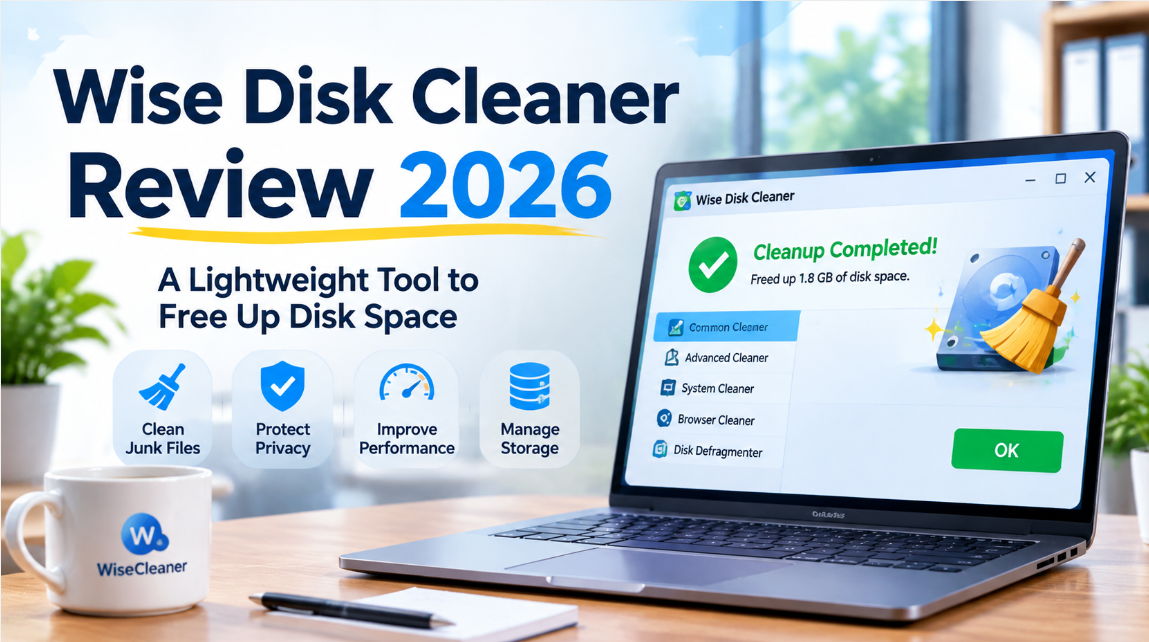
Running out of storage space can become a problem on both personal and office computers. Temporary files, browser caches, application logs, downloaded updates, and other unnecessary data can gradually occupy valuable disk space.
For Windows users looking for a dedicated cleanup utility, Wise Disk Cleaner is one option worth considering.
Developed by WiseCleaner, Wise Disk Cleaner is a Windows utility focused on removing unnecessary files, managing selected browsing data, and providing disk optimization tools. Unlike larger PC maintenance suites, it concentrates primarily on storage cleanup rather than trying to manage every aspect of Windows performance.
But is Wise Disk Cleaner a good choice in 2026? Does it offer enough functionality for office computers, and what should users know before running a cleanup?
This review examines its main features, practical uses, limitations, and safety considerations.
1. What Is Wise Disk Cleaner?
Wise Disk Cleaner is a Windows disk cleanup utility designed to help users identify and remove unnecessary files.
Its main purpose is to recover disk space by cleaning supported categories of temporary and junk data. Depending on the selected options, these categories may include Windows temporary files, application caches, log files, browser data, and other files that are no longer needed.
The software also includes an Advanced Cleaner for more customized file cleanup and a disk optimization feature for compatible storage devices.
Wise Disk Cleaner is designed for Windows computers rather than macOS or Linux systems. WiseCleaner currently lists support for Windows 11, Windows 10, Windows 8/8.1, and Windows 7.
One point worth understanding is that a disk cleaner is not the same as an antivirus program or a complete PC management platform. Its primary job is storage maintenance.
2. Main Wise Disk Cleaner Features
2.1 Common Cleaner: Remove Everyday Junk Files
Common Cleaner is the main cleanup function.
It scans supported locations for unnecessary data, such as temporary files, log files, thumbnail caches, browser caches, and selected application-generated files.
This can be useful on computers that are regularly used for:
- Downloading email attachments and office documents.
- Browsing websites and web-based business platforms.
- Installing and updating desktop applications.
- Working with documents, spreadsheets, and presentations.
- Running applications that generate temporary data.
The amount of space recovered depends on the computer’s usage history. A computer that has accumulated months of temporary data may have more removable files than a recently installed system.
It is important to review the selected categories before deleting anything. Some cleanup options affect browser cookies or other information that users may still need.
2.2 Advanced Cleaner: More Control Over File Types
Advanced Cleaner is designed for users who want more control over which files are scanned.
It allows users to select drives, choose file types, and configure additional cleanup rules. The official manual describes options for scanning supported file extensions and adding custom file types.
This feature can be useful when a particular drive contains temporary files that are not covered by the default cleanup categories.
However, greater flexibility also creates more room for mistakes.
Do not add unfamiliar file extensions or folders simply because they appear large or unnecessary. Application data, project files, and business documents may be stored in locations that look like temporary storage.
For ordinary office users, the recommended default cleanup settings are generally a safer starting point than manually selecting unfamiliar file types.
2.3 Browser Cleanup and Privacy Options
Browsers can accumulate caches, cookies, browsing history, and other local data during everyday use.
Wise Disk Cleaner includes options to remove supported browser-related information.
This may be useful for people who share a Windows computer or want to remove selected local browsing traces after using a workstation.
However, browser cleanup requires some care.
Deleting cookies may sign users out of websites and remove saved preferences. Removing saved passwords can create an even bigger inconvenience if those credentials have not been stored elsewhere.
WiseCleaner’s own Common Cleaner guidance advises users not to clean browser cookies and saved passwords casually.
For office computers, employees should follow company policies before removing browsing information, particularly when browser sessions are connected to business platforms or internal systems.
2.4 Disk Defragmentation and Smart Optimization
Wise Disk Cleaner also provides disk optimization functionality.
Traditional hard disk drives (HDDs) can become fragmented as files are repeatedly created, modified, and deleted. Defragmentation reorganizes fragmented file data to make it more continuous.
However, HDDs and solid-state drives (SSDs) should not be treated in exactly the same way.
WiseCleaner documents a Smart Optimize function that detects the disk type and selects an appropriate operation. Its manual explains that SSD partitions are left unchecked by default in the defragmentation interface and that the program provides warnings about SSD optimization.
For most users, the practical advice is simple:
- HDD: Defragmentation may be useful in appropriate situations.
- SSD: Do not run traditional manual defragmentation as if it were a mechanical hard drive. Use Windows’ recommended drive optimization process and understand what operation the utility is performing.
The presence of a defragmentation feature does not mean every drive needs manual optimization.
2.5 Portable Version
WiseCleaner provides a portable download option for Wise Disk Cleaner.
A portable version can be useful when users prefer not to perform a conventional installation on a computer. It may also be convenient for certain maintenance workflows.
However, portable software should still be downloaded from the official source and used in accordance with workplace IT policies.
Portable does not automatically mean that a program is approved for use on managed company computers.
2.6 Lightweight and Focused Design
Wise Disk Cleaner is positioned as a lightweight Windows utility.
The official download center lists a relatively small download package, and the product focuses on disk cleanup and related storage maintenance rather than offering a large collection of unrelated system tools.
This focused approach may appeal to users who simply want to inspect unnecessary files and recover storage space.
It is also important to distinguish a small download size from measured system performance. Without independent testing, it would not be appropriate to claim that the software is faster than every competing cleanup application.
3. Advantages of Wise Disk Cleaner
Focused storage maintenance: Its main purpose is to identify and remove supported unnecessary files rather than provide an extensive collection of unrelated PC tools.
Common and Advanced Cleaner options: Users can start with standard cleanup categories and explore more customized file-type scanning when needed.
Browser cleanup controls: Supported browser data can be included in cleanup operations, although cookies and saved passwords require caution.
HDD optimization feature: The software includes disk optimization tools and documents different handling for HDDs and SSDs.
Portable download option: Users can obtain a portable version from the official WiseCleaner download center.
Free utility: WiseCleaner presents Wise Disk Cleaner as a free disk cleaning tool. Users should check the official product page for the current licensing and download information.
4. Disadvantages and Limitations
4.1 Windows Only
Wise Disk Cleaner is designed for Windows computers.
Users who work primarily on macOS or Linux will need a different cleanup solution.
4.2 Not a Complete Business IT Platform
The software is a disk cleanup utility, not a centralized endpoint management system.
It does not replace enterprise backup solutions, antivirus software, device monitoring, software deployment, or company-wide IT administration.
Organizations managing many computers should not treat an individual cleanup utility as a substitute for centralized IT controls.
4.3 Advanced Cleaning Requires Knowledge
Advanced Cleaner gives users more control over file selection, but manually adding file types or folders can be risky.
Removing application data or files needed by a business application may cause unexpected problems.
Users who are unfamiliar with Windows file locations should begin with the recommended cleanup settings.
4.4 Browser Cleanup Can Affect Login Sessions
Removing cookies and saved browser information may affect access to frequently used websites.
This is particularly relevant to employees who rely on browser-based email, customer management systems, cloud documents, or internal business platforms.
4.5 Cleanup Does Not Guarantee a Faster Computer
Removing unnecessary files can recover storage space, but it does not automatically make every computer faster.
If a computer is slow because of insufficient RAM, an aging hard drive, excessive startup programs, malware, or hardware limitations, deleting temporary files may have little effect on overall responsiveness.
Wise Disk Cleaner should primarily be viewed as a storage maintenance tool.
5. Is Wise Disk Cleaner Suitable for Office Computers?
Wise Disk Cleaner may be useful for individuals and small offices that need a straightforward way to manage unnecessary files on Windows computers.
Potential use cases include:
- Small offices: Recovering storage space on computers used for everyday administrative work.
- Employees with limited disk capacity: Removing supported temporary files when a system drive is running low on space.
- Shared workstations: Cleaning selected local browsing data when permitted by company policy.
- Individual Windows users: Performing occasional storage maintenance without installing a large optimization suite.
- Technically confident users: Using Advanced Cleaner to inspect additional file categories.
However, businesses should consider a few precautions before using cleanup software across multiple workstations.
First, employees should not independently delete unfamiliar application data. Second, important documents and business records should be backed up according to company policy. Third, IT administrators should review cleanup settings before deploying any maintenance process to multiple computers.
For organizations with strict data retention or compliance requirements, cleanup operations should be documented and controlled.
6. How to Use Wise Disk Cleaner Safely
For users who want to try the software, a cautious cleanup process is preferable to selecting every available option.
Step 1: Download from the Official Website
Visit the WiseCleaner website and locate the Wise Disk Cleaner download page.
Avoid third-party download sites that may bundle additional software or distribute outdated installers.
Step 2: Install or Run the Portable Version
Choose the standard installer or portable download according to your needs and workplace policies.
If you are using a company-managed computer, check with your IT administrator before installing or running additional utilities.
Step 3: Start with Common Cleaner
Open the application and begin with the standard cleanup function.
For first-time users, the recommended settings are a more sensible starting point than manually selecting unfamiliar categories.
Step 4: Review the Scan Results
Check which file categories have been selected.
Pay particular attention to browser cookies, saved passwords, application data, and files associated with active work processes.
Do not assume that every item identified by a cleanup utility is safe to delete in every business environment.
Step 5: Confirm the Cleanup
Once you have reviewed the results and confirmed that the selected items are unnecessary, proceed with the cleanup.
Close relevant applications first when appropriate, especially browsers and programs that may still be using temporary files.
Step 6: Check Available Storage Space
After cleanup, review the available disk space in Windows.
The amount recovered will vary depending on the files present before the cleanup. There is no reliable universal figure that applies to every computer.
Step 7: Treat Disk Optimization Separately
Before using the disk optimization feature, identify whether the drive is an HDD or SSD.
For SSDs, follow the software’s disk-type detection and warning messages, and use Windows’ recommended optimization approach rather than assuming traditional defragmentation is necessary.
7. Wise Disk Cleaner vs. Other PC Cleanup Tools
Different cleanup applications have different priorities. The best choice depends on whether users want simple storage cleanup, open-source controls, or a broader set of PC maintenance functions.
| Software | Main Focus | Best Suited For |
|---|---|---|
| Wise Disk Cleaner | Disk cleanup and storage maintenance | Windows users who want focused cleanup tools |
| CCleaner | PC maintenance and privacy cleanup | Users looking for a broader maintenance utility |
| BleachBit | Open-source file and privacy cleanup | Users who prefer open-source software and more technical controls |
| Ashampoo WinOptimizer | A broader collection of Windows optimization tools | Users interested in multiple PC maintenance functions |
Wise Disk Cleaner is worth considering when the main requirement is recovering storage space.
BleachBit may be more attractive to users who prioritize open-source software. CCleaner and Ashampoo WinOptimizer may be worth comparing when users want a broader set of maintenance features.
These products are not identical, so users should compare their current features, licensing, supported systems, and cleanup options before choosing one.
8. Is Wise Disk Cleaner Safe to Use?
Wise Disk Cleaner is distributed by WiseCleaner, which provides official product documentation and download resources.
However, no cleanup utility should be used without reviewing its selected operations.
The main practical risks are not limited to the application itself. They also depend on what the user chooses to remove.
For safer use:
- Download the program from the official WiseCleaner website.
- Review cleanup categories before confirming deletion.
- Avoid removing browser passwords or important cookies.
- Do not manually add unfamiliar file types or folders.
- Keep backups of important documents and business data.
- Follow company IT and data retention policies.
- Be cautious when using disk optimization features on SSDs.
For office environments, the safest approach is to test the cleanup settings on a non-critical workstation before using them more widely.
9. Frequently Asked Questions
Is Wise Disk Cleaner free?
WiseCleaner lists Wise Disk Cleaner as a free utility. Check the official product page for the latest download and licensing details.
Does Wise Disk Cleaner support Windows 11?
Yes. WiseCleaner’s published technical specifications list Windows 11 support, along with Windows 10, Windows 8/8.1, and Windows 7.
Can Wise Disk Cleaner remove temporary files?
Yes. Removing supported temporary files, logs, caches, and other unnecessary data is one of its primary functions.
Does Wise Disk Cleaner support SSDs?
It can perform supported cleanup operations on computers using SSDs. Its disk optimization feature also documents disk-type detection and different handling for SSDs. Users should follow the software’s warnings and avoid unnecessary traditional defragmentation.
Can Wise Disk Cleaner delete browser cookies?
Yes. Its Common Cleaner includes supported browser cleanup options. However, deleting cookies may sign users out of websites or remove saved preferences.
Does Wise Disk Cleaner make a computer faster?
It may help recover disk space, but a cleanup does not guarantee a noticeable performance improvement. Slow computers may have other causes, including limited memory, hardware problems, or too many startup applications.
Is Wise Disk Cleaner suitable for office computers?
It can be suitable for basic storage maintenance on Windows office computers. Organizations should review cleanup settings and follow their own backup, security, and data retention policies.
Where can I download Wise Disk Cleaner?
The safest place to obtain the software is the official WiseCleaner website. Avoid installers from unfamiliar third-party download sources.
Final Verdict: Is Wise Disk Cleaner Worth Using?
Wise Disk Cleaner is a focused Windows utility for users who want to identify and remove unnecessary files, recover storage space, and access additional disk maintenance functions.
Its main strengths are its Common Cleaner and Advanced Cleaner options, browser cleanup controls, portable download option, and HDD/SSD-aware optimization features.
However, it is important to understand what the software does not do. It is not a complete IT management platform, an antivirus solution, or a guaranteed way to improve computer speed.
For individuals and small offices that mainly need basic Windows storage maintenance, Wise Disk Cleaner is worth considering.
Our recommendation: Choose Wise Disk Cleaner if your priority is straightforward disk cleanup on a Windows computer. Start with the recommended settings, review every selected category, and treat browser data and disk optimization options carefully.
Review Methodology
This review is based on publicly available WiseCleaner product information, official documentation, and published technical specifications. It does not claim independent laboratory testing, firsthand performance measurements, or verified results from office deployments.
Product features, supported operating systems, and download versions may change. Readers should confirm the latest details on the official WiseCleaner website before installation.